 FerrisKey
The admin console
FerrisKey’s web console has two panels over the same realm. The Admin panel is the full set of resources and settings, in the vocabulary of the API. The Console panel is organized around what is happening in the realm and what you give your customers, and it says “application” and “identity” where the Admin panel says “client” and “user”.
Neither panel has permissions of its own. Both call the same API with the token of the person signed in, so a screen you cannot use in one panel is refused for the same reason in the other.
Switching panels
Open the avatar menu in the top right corner. Under Panel mode, choose Admin or Console. The switch keeps you on the equivalent page when there is one:
| In the Admin panel | In the Console panel |
|---|---|
| Overview | Activity, Live |
| Users | User management, Identities |
| Organizations | User management, Organizations |
| Roles | User management, Roles |
| Clients | Applications |
| Sea Watch and Compass | Activity, Logs & events |
| Identity Providers | Authentication, Identity providers |
| Realm Settings | Authentication, Sign-in methods |
| Emails | Branding, Email templates |
| Portal | Branding, Themes |
A page with no counterpart opens the start page of the other panel: Overview in the Admin panel, Live in the Console panel. The Console panel lives at /realms/{realm_name}/console, the Admin panel at /realms/{realm_name}/overview.
Both panels share the same top bar: the realm picker, a language menu (see Localization), the theme switch between light, dark and system, and the avatar menu with your account page and Log out.
The Admin panel
The sidebar groups the resources of a realm in three sections. The arrow at the bottom, or the keyboard shortcut ⌘B, collapses it, and the version of FerrisKey is shown there too.
| Section | Entries |
|---|---|
| Core | Overview, Clients, Users, Roles, Client Scopes, Organizations |
| Configuration | Realm Settings, Portal, Emails, Webhooks, Identity Providers, User Federation, Authentication |
| Security | Sea Watch, Compass |
Overview greets you with the realm’s counts of users, clients, roles and traced authentication flows, alerts about disabled clients, unverified emails and failed flows, a chart of recent logins, the sign-in features the realm exposes and the last authentication flows.
Realm Settings groups its options in six tabs: General, Login, Tokens, MCP, Password Policy and Maintenance. The Authentication entry is greyed out. Its tooltip says it is not implemented yet, and the Console panel is where sign-in settings live.
The Console panel
The Console panel has five sections along the top. Each section opens a sidebar with its views, each with a one-line description.
| Section | Views |
|---|---|
| Activity | Live, Logs & events, Sessions, Message delivery |
| User management | Identities, Organizations, Roles |
| Applications | All applications |
| Authentication | Sign-in methods, Identity providers, Password policy |
| Branding | Email templates, Themes, Layouts |
Activity
Activity reports on what the realm recorded over the last 7 days, except Live, which has its own range.
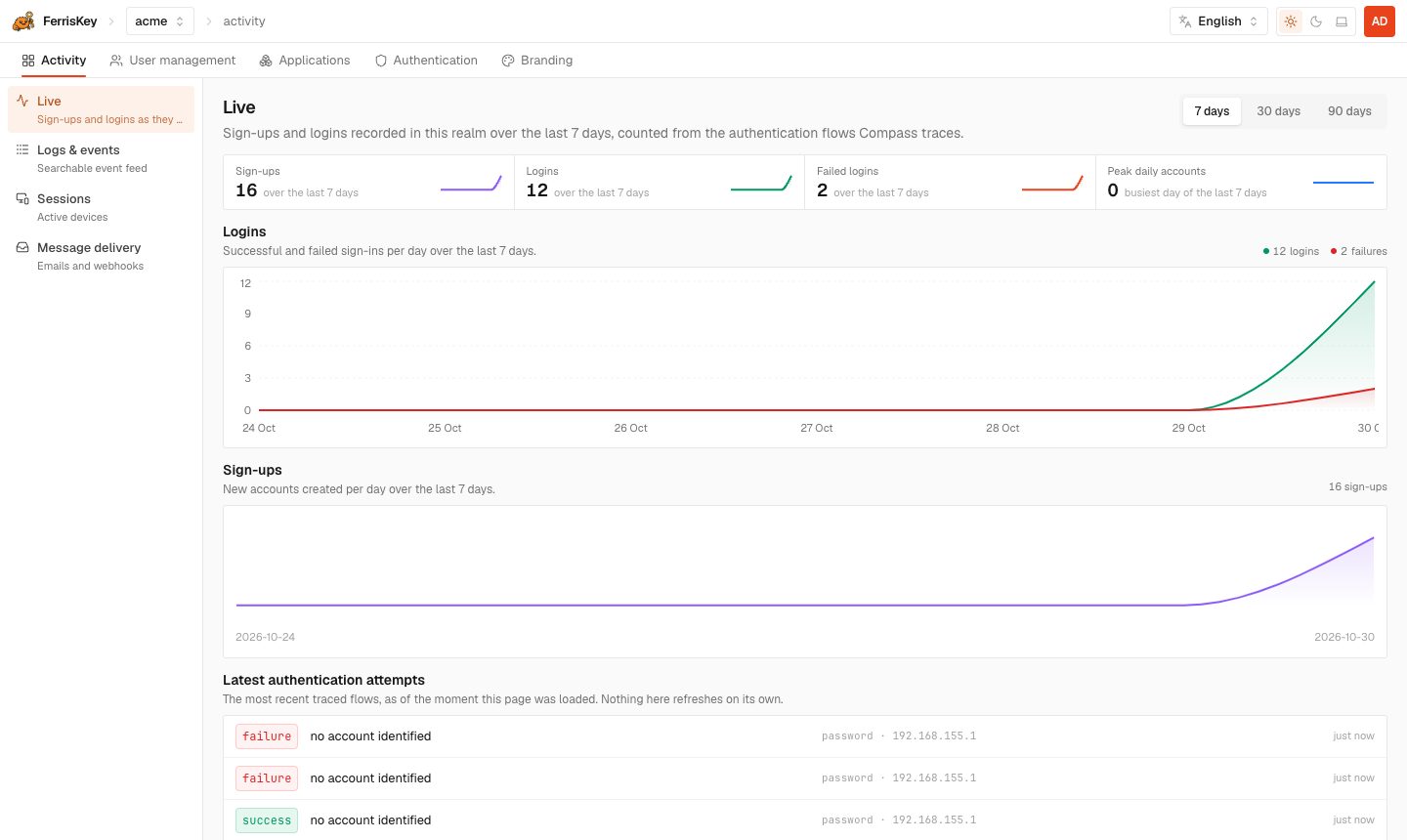
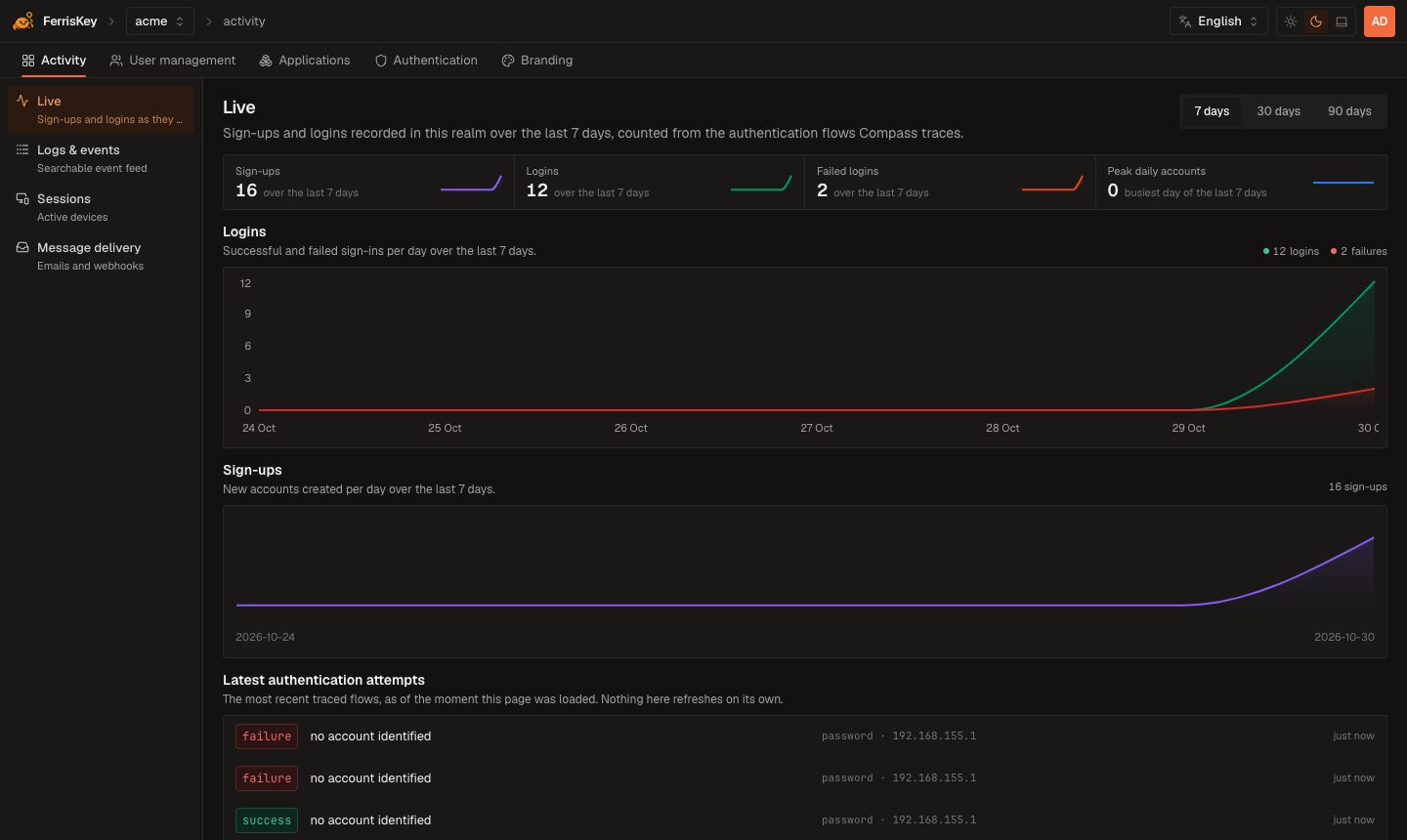
Live counts sign-ups, logins and failed logins from the authentication flows that Compass traces, and shows the highest number of distinct accounts that signed in on one day. A switch sets the range to 7, 30 or 90 days. Under the counters sit a chart of logins and failures per day, a chart of sign-ups per day and the ten most recent traced flows, as of the moment the page loaded. Nothing refreshes by itself. Compass tracing is on by default (compass_enabled). With it off nothing is recorded, and the page says so.
Logs & events lists the realm’s SeaWatch security events, most recent first, with filters and sorting done by the server. Above the feed, tiles give the number of events, the failures, the success rate and the distinct accounts over the last 7 days. The figures that need the events themselves, such as the distinct accounts, read at most the 100 most recent ones, and a notice tells you when that cap applies.
Sessions is a journal of the session_created and session_revoked events, with the device and the origin recorded at the time, and tiles for sessions opened, sessions revoked, distinct accounts and distinct IP addresses. It is not a list of the devices signed in right now. The API lists and ends sessions one account at a time; see Users.
Message delivery lists the email_sent and email_not_sent events: the transactional emails the realm tried to send, delivered or not, with the reason the mail server gave for a failure. It also lists the realm’s webhook endpoints and when each last fired, and warns when the realm has no SMTP configuration. See Email & Templates.
User management
Identities are the realm’s customer accounts: the users that are not service accounts. Service accounts belong to applications. The list has tiles for the total, the verified emails, the pending actions and the disabled accounts, an alert when someone has an action pending at the next sign-in, a search box and filters on creation date, role, active and email verified. An identity opens on five tabs: Overview, Credentials, Role mapping, Organizations and Attributes, the same as a user in the Admin panel. See Users.
Organizations open on Settings, Attributes and Members. Roles open on Settings, Permissions and Identities, the accounts that hold the role.
Applications
Applications are clients, presented by what they do. You pick a type when you create one, and the type decides the sign-in flow and whether a secret is generated. It cannot be changed afterwards.
| Type | Sign-in flow |
|---|---|
| Mobile or desktop | Authorization Code + PKCE |
| Single-page app | Authorization Code + PKCE |
| Server-rendered web app | Authorization Code |
| Machine to machine | Client Credentials |
| Device or CLI | Device Authorization Grant |
The list shows the name, client ID, type, status and creation date, and filters on creation date, enabled and type. An application opens on six tabs: Quickstart, with the endpoints your OIDC library needs and a code snippet for the flow; Settings, with the callback URLs, web origins, sign-in methods and session lengths; Credentials; API access; SAML; and Maintenance. See Clients.
Authentication
Sign-in methods gathers the realm’s sign-in settings on one screen:
| Group | What it sets |
|---|---|
| Identifiers | What the person types to name their account: username, email or both, and which is tried first |
| Passwordless methods | Passkey, and magic link with its validity in minutes |
| Multi-factor authentication | Whether everyone is asked for a second factor |
| Account access | Self-service sign-up, email verification, password recovery and the stay signed in checkbox |
| Sign-in protection | Failed attempts before a lockout, and how long it lasts. See Lockout |
This is the only screen of the console that edits the second-factor requirement and the lockout settings. The Admin panel leaves them to the API. A warning appears when the realm has no SMTP configuration, since magic links, email verification and password recovery all send a message.
Identity providers is the same page as in the Admin panel. Password policy edits the realm’s password policy and previews what the person sees: the sign-up and reset pages list five of the rules next to the field, and the rest are checked when the form is submitted.
Branding
Branding holds what your customers see: the Emails page with its Templates and SMTP tabs, the portal Themes and the portal Layouts. They are the same pages as Emails and Portal in the Admin panel.
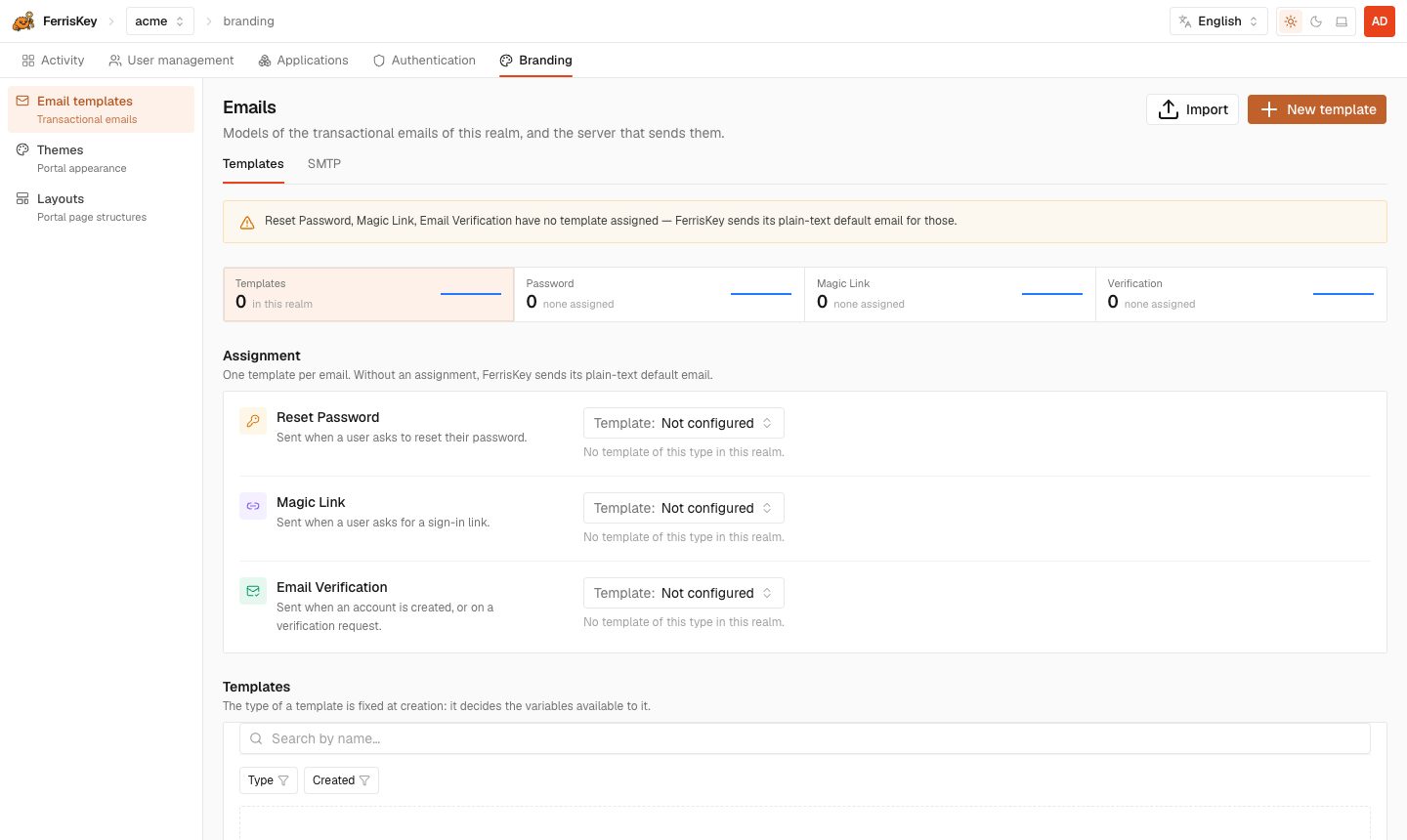
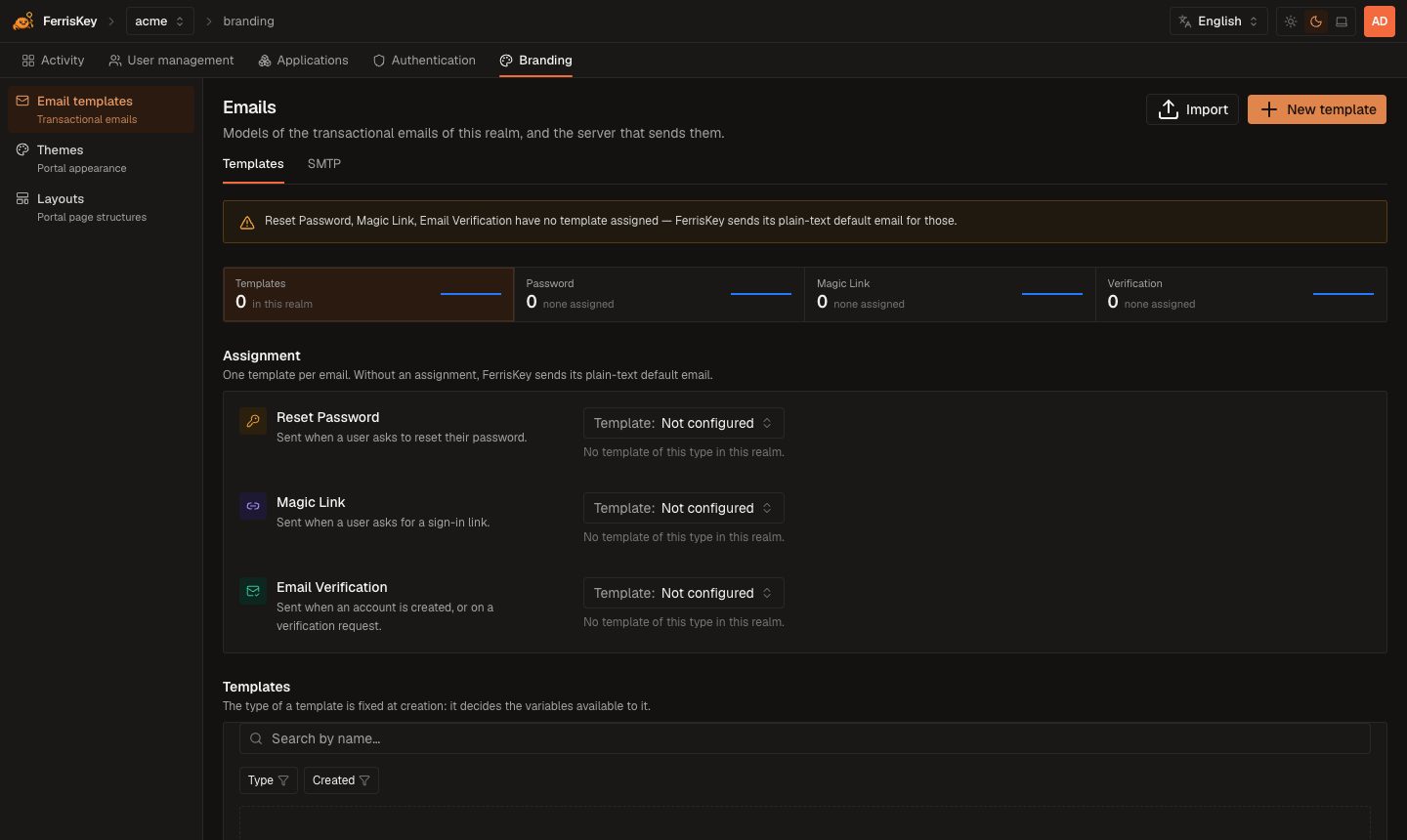
See Email & Templates, Portal and Export & Import.